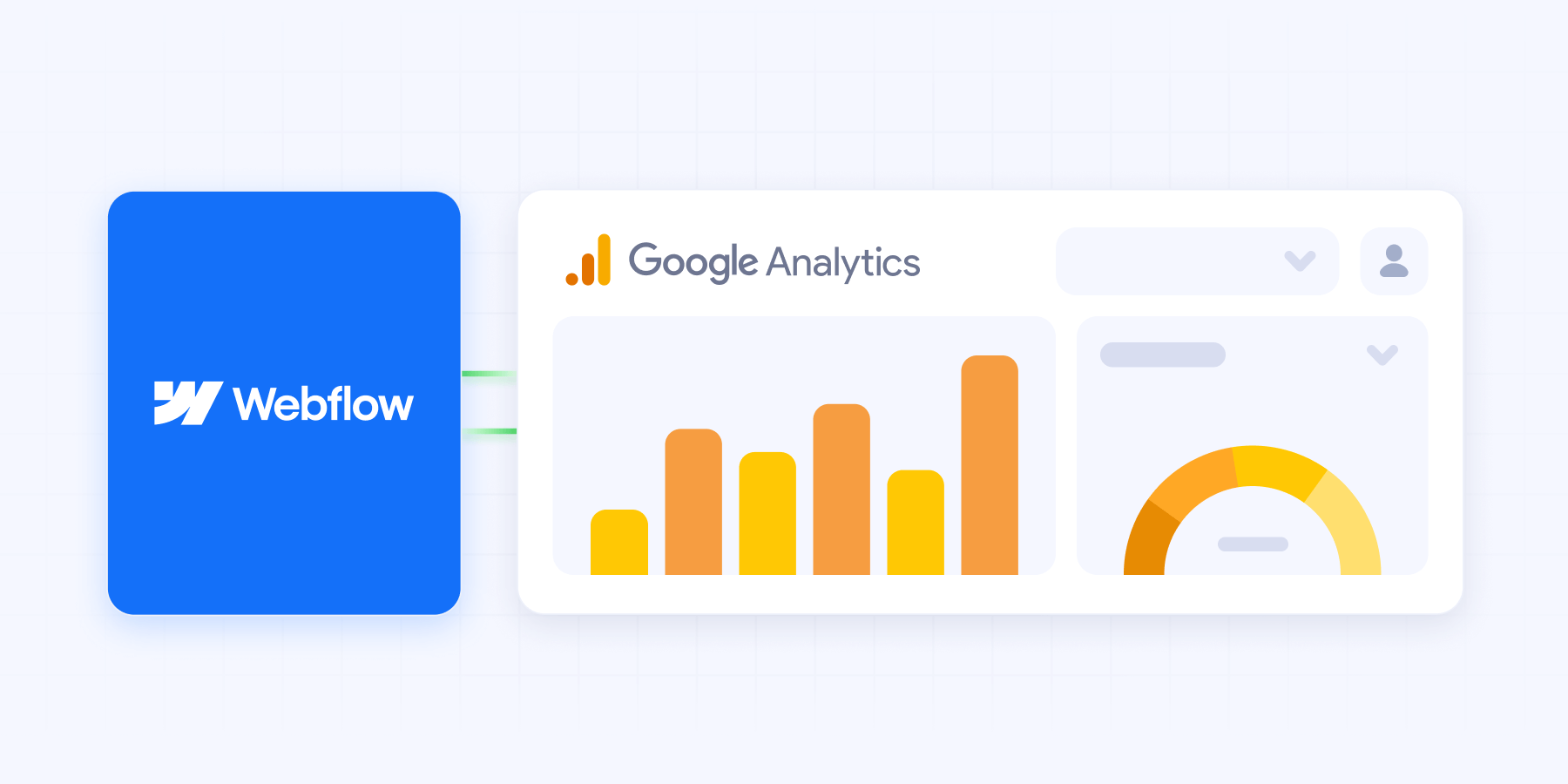
You pasted the Measurement ID, hit publish, and now you're staring at a GA4 property that may or may not be recording anything. That's the actual problem with Google Analytics on Webflow. The setup takes two minutes; knowing it worked, and that the numbers you'll quote in Monday's meeting are real, is the part most guides skip.
Here's the short version: connect Google Analytics to Webflow either through the native integration (Site Settings, then Integrations, paste your GA4 Measurement ID) or by adding the Google tag in the Custom Code tab. Then verify in GA4's Realtime report before you trust a single number. I'll walk through both methods, the Tag Manager route for teams that need more, and the two traps that produce bad data: double installation and cookie consent.
What you need before you start
Two things: a published Webflow site (tracking only fires on the live domain, not in the Designer) and a Google Analytics account, which is free. If you're setting up analytics as part of a larger search push, the tracking is the measurement half; the ranking half is covered in our Webflow SEO service, and the two feed each other.
Setting up your GA4 property
Skip this section if you already have a GA4 property with a Measurement ID.
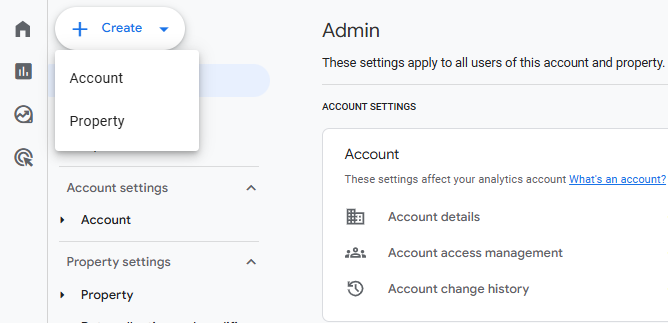
If you already use Google Analytics for other projects, create a new property from the Admin section. One account can hold several properties; when you run several Webflow projects under one company, give each project its own property so the data never mixes.
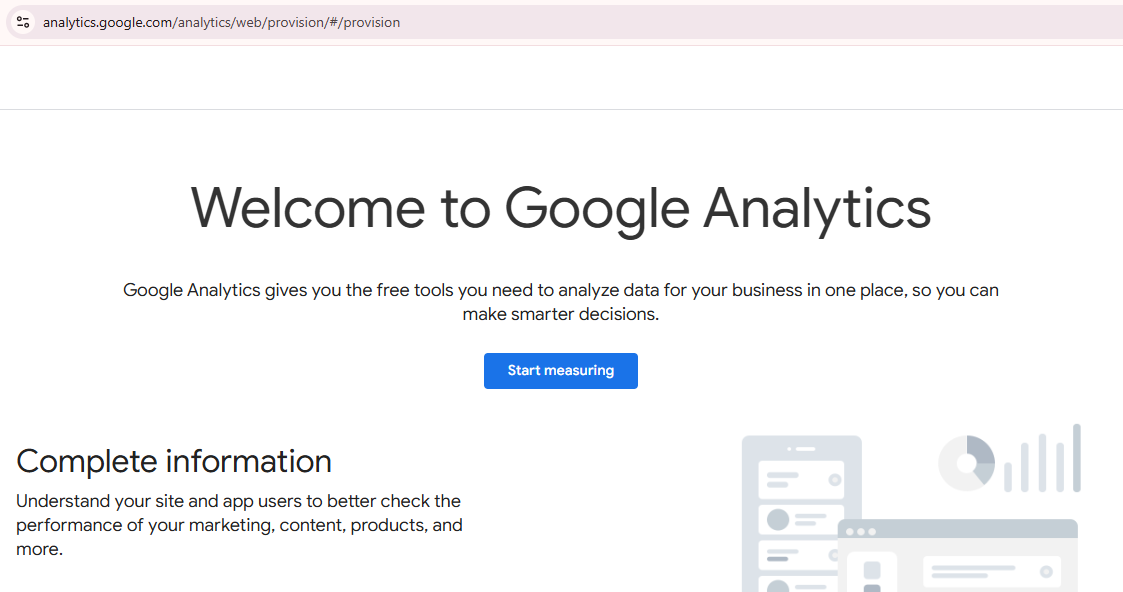
Starting from zero:
- Go to Google Analytics and sign in with your Google account.
- Click Start measuring and name the account.
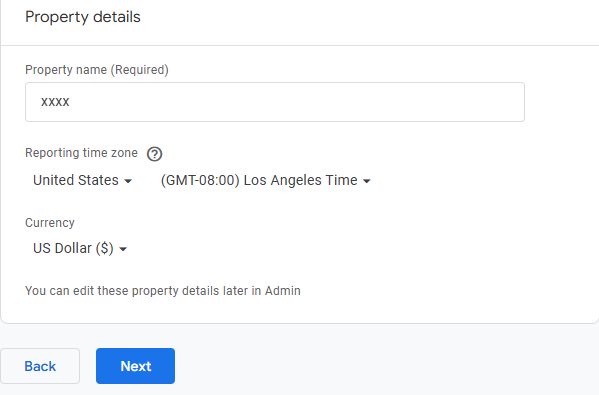
- Name the property, set your reporting time zone and currency.
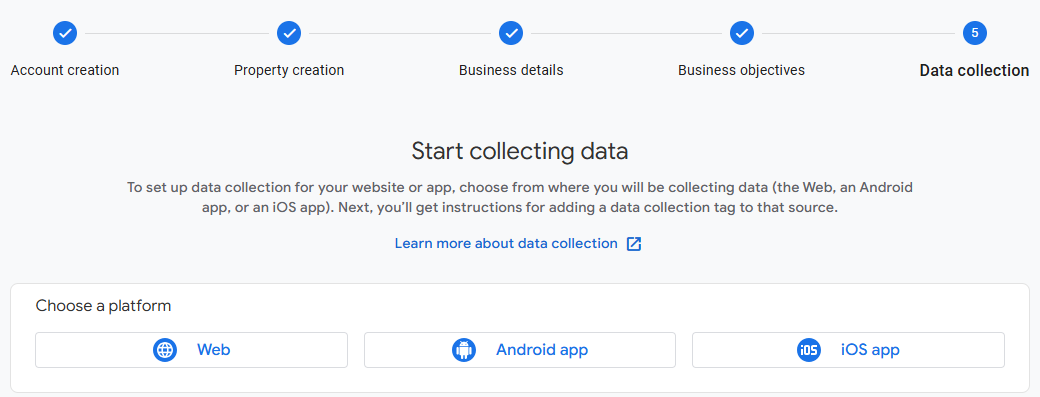
- Choose Web as the platform.
- Enter your site's URL and a stream name, then click Create stream.
Google generates a Measurement ID in the format G-XXXXXXXXXX. That string is what connects your Webflow site to the property.
Method 1: Webflow's native Google Analytics integration
The fastest route, and the one I recommend for most sites.
- Open your project and go to Site Settings.
- Open the Integrations tab.
- Find the Google Analytics section and paste your Measurement ID.
- Save and publish.
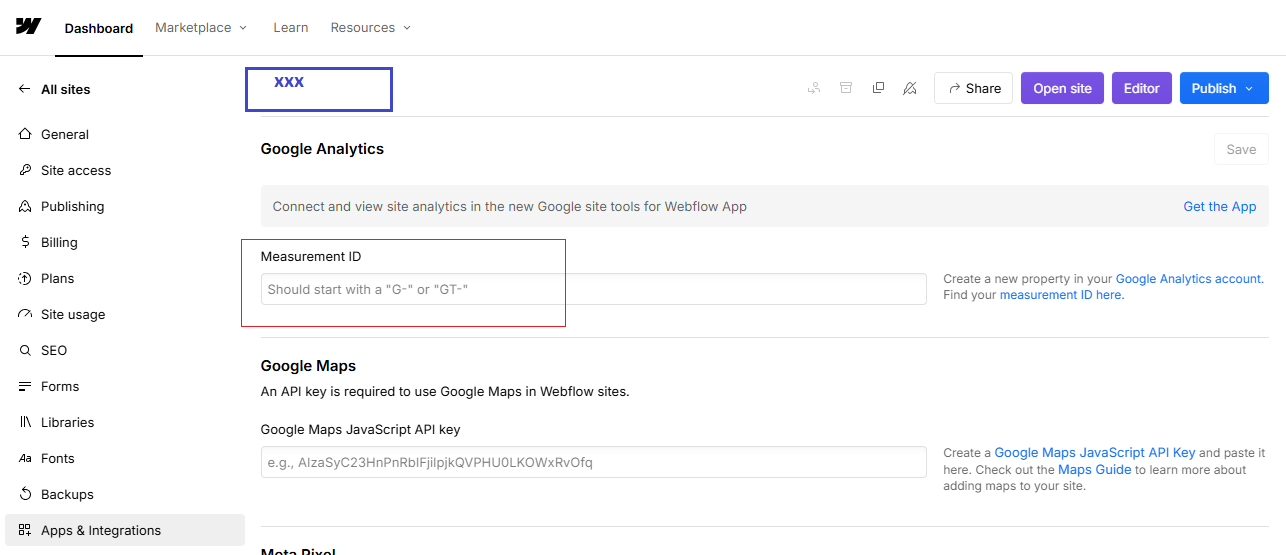
No code, no placement decisions, and Webflow loads the tag correctly on every page. Publishing is the step people forget: the integration does nothing until the site republishes.
Method 2: adding the Google tag with custom code
Use this route when you need control the native field doesn't give you, for example when the same snippet also has to carry consent configuration.

- In GA4, open your web stream details and copy the Google tag snippet (Google renamed the Global Site Tag a while back; same thing, new name).
- In Webflow, open Site Settings, then the Custom Code tab.
- Paste the full snippet into the Head Code section. Head placement matters: the tag needs to load before the page content does.
- Save and publish.
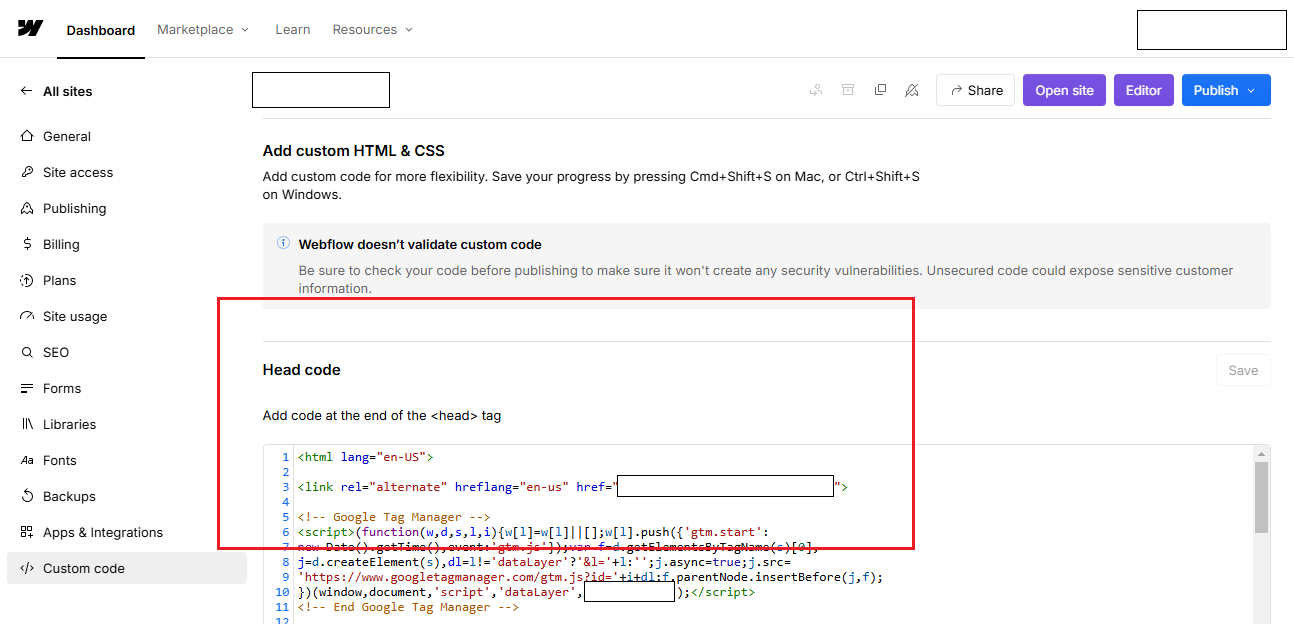
One rule with no exceptions: pick one method. Running the native integration and the custom code snippet at the same time fires two tags, doubles your pageviews, and quietly wrecks every conversion rate you calculate afterward. If custom code work like this is stacking up on your site, that's the kind of thing our Webflow development team ships without touching your design.
Method 3: Google Tag Manager for advanced tracking
When you're juggling GA4 plus ad pixels, heatmaps, and conversion tags, manage them in one container instead of a growing pile of pasted snippets.
- Create a Google Tag Manager account and a container for your site.
- Copy the two GTM snippets into Webflow's Custom Code tab: one in Head Code, one in Footer Code.
- Inside GTM, add a Google Analytics: GA4 Configuration tag with your Measurement ID.
- Set the trigger to All Pages, preview to test, then publish the container.
If GTM carries your GA4 tag, remove the Measurement ID from Webflow's native field. Same double-counting rule as above.
Verify it before you trust it
This is the step that separates a working setup from an assumed one.
- Open your live site in one tab.
- In GA4, open Reports, then Realtime.
- Click around your site and watch yourself appear in the report within a few seconds.
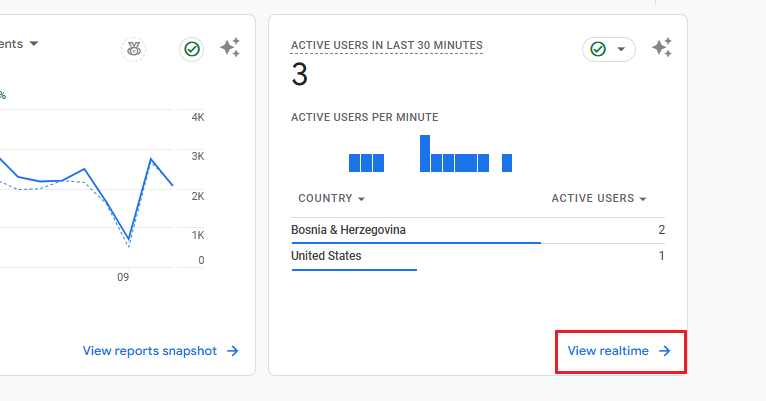
For a deeper check, use DebugView (under Admin) with the Google Analytics Debugger browser extension: it shows every event as it fires, which is how you catch a tag that loads but reports the wrong events. Check Realtime again a day after launch too. Tags have a way of working on launch day and breaking the first time someone edits the head code.
Does Webflow have built-in analytics?
Yes. Webflow Analyze is Webflow's own analytics product, and the honest answer to whether you need GA4 at all has changed because of it. Analyze gives you page-level traffic and engagement data without cookies, which means it keeps reporting even when visitors decline consent. GA4 gives you what Analyze doesn't: cross-channel attribution, conversion tracking tied to your ad platforms, audiences, and the export paths your ops team probably depends on.
For most B2B SaaS sites the split looks like this: Analyze for quick page performance reads your marketing team checks weekly, GA4 as the system of record for campaigns and conversions. They coexist without conflict, so this isn't an either-or decision.
The cookie consent trap
The mistake I can speak to from our own site: we shipped a launch where the cookie consent banner went live at the same moment as the new site. GA4 only records visitors who accept, so the post-launch traffic numbers came in far below reality, and for a while the launch looked like it had failed. It hadn't. Google Search Console, which doesn't depend on consent, showed clicks and impressions climbing the whole time.
Two lessons worth stealing. First, if you add a consent banner, expect a permanent gap between GA4 and reality, and size it before you present numbers to anyone. Second, keep Search Console as your second source of truth for organic traffic; when the two disagree after a consent change, Search Console is the one telling the truth. Watching for exactly this kind of drift after launches and changes is a standing part of our Webflow maintenance retainers, because it's the thing nobody notices until a quarterly report looks wrong.
Common mistakes to avoid
Four I see repeatedly: running the native integration and a pasted snippet at the same time (double counting), pasting the tag into Footer Code instead of Head Code (late or missed pageviews), testing on the webflow.io staging domain and wondering why production shows nothing (add both domains to the stream or filter staging out), and never opening Realtime, which turns every later report into a guess.