Webflow MCP is Webflow's official Model Context Protocol server. It connects AI tools like Claude, ChatGPT and Cursor to your Webflow site, so an agent can read and change pages, components, styles, CMS content and interactions in plain language, under the same roles and permissions as the person who connected it. Version 2.0 shipped on July 21, 2026, at no extra cost on every Webflow plan.
That's the definition. The part nobody writes down is what it's like to build real sites with it, so that's most of this article.
I didn't start with clients. We tried Webflow MCP on our own site first, the stan.vision rebuild, about forty build rounds of it, because I wanted to find the sharp edges on a site where the only person who could get hurt was me. Once we knew where it was good and where it wasn't, we brought it into client work, gradually. Today it's part of the workflow on many of our recent projects. Not all of them, and never on its own.
What is Webflow MCP?
Webflow MCP is a server, run by Webflow, that exposes your site to AI agents as a set of tools. MCP (Model Context Protocol) is an open standard for connecting AI models to outside software, and Webflow's server speaks it, so any MCP-capable AI tool can work on a Webflow site without custom code. It's built on Webflow's own Data and Designer APIs, which is why it can do almost everything those APIs can. If Webflow itself is new to you, start with what Webflow is and how it works.
Two releases matter right now:
- MCP 2.0 (July 21, 2026) added design system support (styles, components, props, slots and variants), CMS-bound elements, custom fonts, multi-page and multi-site work, Agent Instructions, read access to analytics, and the governance layer: branches, roles and permissions, and activity logs (Webflow's MCP 2.0 announcement).
- MCP 2.1 (September 21, 2026) added interactions built on GSAP, Webflow Cloud apps and Campaigns (Webflow developer changelog).
It works on every site plan, including the free Starter plan. Analytics needs the Analyze or Optimize add-on, and a few governance features are Enterprise only (more on that below). Anyone with a site role except Reviewer can connect it, and the agent can never do more than that person's role allows.

How do I connect Claude to Webflow?
You connect Claude to Webflow through the Webflow connector in the Claude app, then pick which sites Claude may touch. It takes about two minutes, and you never paste an API key.
- In a Claude chat, click + and choose Add connectors.
- Search for Webflow. If it doesn't show, switch the list from Featured to All.
- Click Connect and log in to Webflow.
- Select the sites and Workspaces Claude may access, then click Authorize App.
- Test it with a read-only prompt, like asking Claude to list your CMS collections and their fields.
That's the whole setup we run. We use Claude only, through that connector, nothing custom. Other tools connect to the same server: Claude Code with claude mcp add, Cursor through Webflow's plugin, and anything else through the server URL, https://mcp.webflow.com/mcp (Webflow's getting started guide).
The MCP Bridge App confuses people, so here's the short version. It installs itself during authorization, it isn't in the app marketplace, and since 2.0 you only need it for actions that depend on what's open on the Designer canvas, like element snapshots or "change the thing I've selected." One practical note from us: keep the Designer tab with the Bridge App in front. In a background tab it times out.
Authorize only what you're working on
The connection asks which sites Claude may touch, and that choice is your first guardrail.
Pick the one site you're working on today, not every site in the Workspace. Webflow gives the same advice, and you can widen access later. At the start of each session, ask Claude to read how the site is built before it changes anything.
What can Webflow MCP build automatically?
Webflow MCP can build pages and sections from your existing components, write and update CMS items in bulk, create styles and variables, add GSAP interactions, publish to your staging domain, and read analytics. It can't do everything the Designer can, and the gaps are specific enough that you should know them before you plan a project around it.
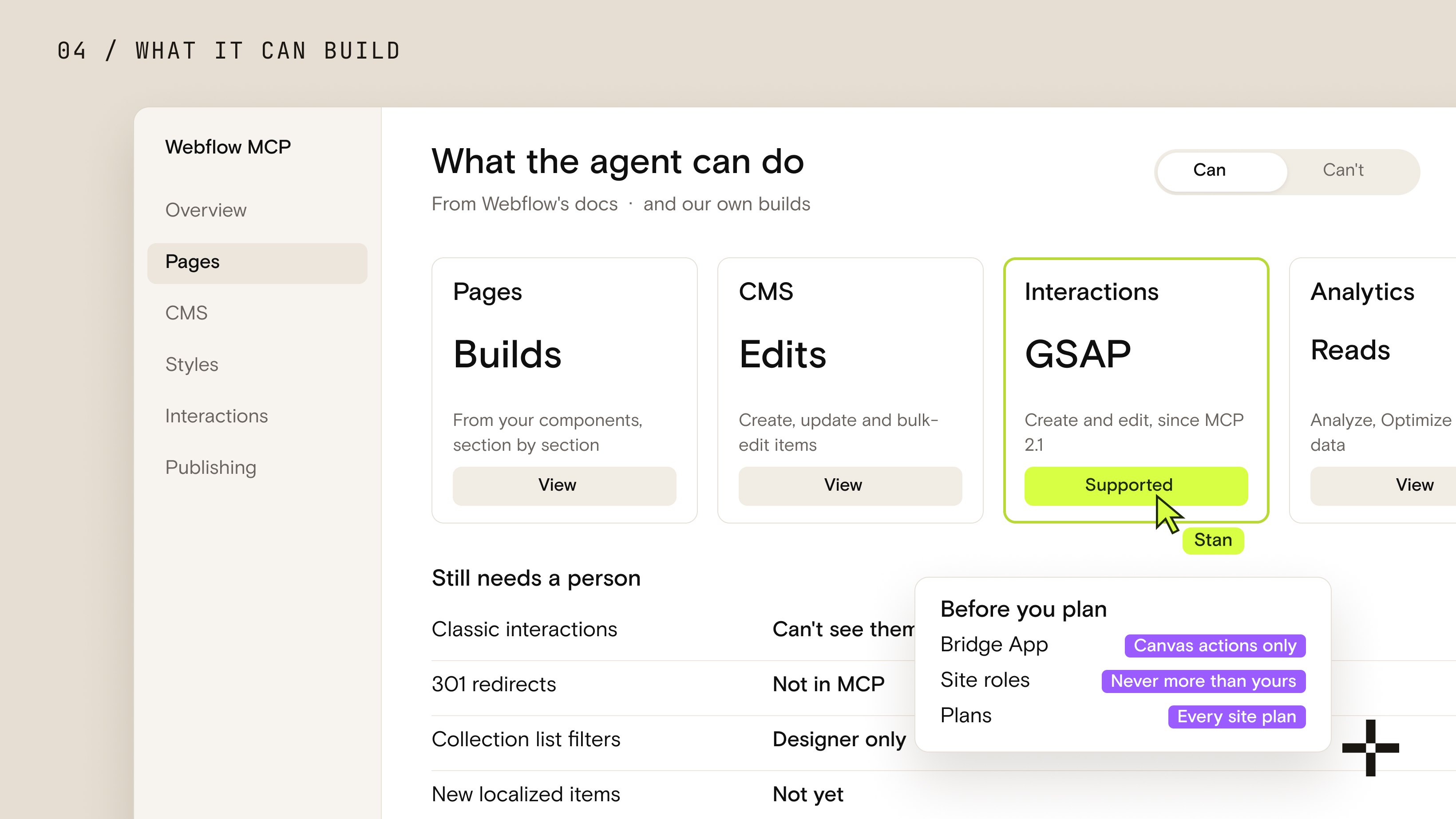
Here's the honest split, from Webflow's documentation and from our own builds:
| Area | What the agent can do | What still needs a person |
|---|---|---|
| Pages and sections | Build pages from your components, insert sections, set props and text | Some element settings, moving existing elements into a component's slot |
| CMS | Create, update and bulk-edit items, query with filters and paging | Collection list sorting and filters, conditional visibility, new localized items |
| Styles | Create classes, variables and fonts, style elements per breakpoint | Heading tag styles and a few style properties the API rejects |
| Interactions | Create and edit GSAP interactions, since MCP 2.1 | Anything built with Classic interactions, which the agent can't see |
| Publishing | Publish the site, including to the webflow.io staging domain | 301 redirects, deleting pages and collections |
| Analytics | Read Analyze, Optimize and AEO data | Changing tests or analytics settings, since access is read-only |
Two of those gaps deserve a sentence each. The agent can't see Classic interactions at all. On a site built with the older interactions, asking for a list returns nothing, which looks exactly like a site with no animation. And rich text fields are written whole, so a small edit to a long article means sending back the entire body. We snapshot the field first, change it, and compare the saved version byte for byte afterwards.
The pattern underneath the table is simple. The agent is strong where the work is structured and repetitive, and weak where the work depends on seeing the page. Which is why the person matters so much in how we run it.
What we hand to Webflow MCP, and what we keep
For a marketing team, the change is this: work that used to wait in a developer's queue can now happen the same day, as long as it stays inside what the site already has. That rule is where we draw the line.
We hand to the agent:
- New pages built from existing components, like a campaign page or a new service page on a layout the site already has.
- Meta titles and descriptions, in bulk.
- Alt text across the whole image library.
- Translations of existing pages and CMS items.
- CMS entry and bulk updates.
- QA and audits: missing fields, heading order, broken links.
We keep:
- New pages that need new components or a new layout. That's design work, and it starts in Figma with us.
- The design system itself: type, spacing, components and motion.
- Positioning and headline copy.
- Redirects and site structure.
- Publishing to production.
Everything on the first list still gets a person's review. Alt text that describes the wrong thing, or a translation that's correct and still off-brand, is exactly what that review is for.
How we actually work with Webflow MCP
We work with Webflow MCP as a collaboration: a person leads, the agent builds, and the person checks everything it builds. Nothing ships because an agent decided it was done. Someone on our team decided.
That person isn't a passive approver clicking yes at the end. They're the operator. They know what the page has to do, how it should look, which component fits and why, and they write the requirements the agent works from. While the agent builds one section, they're reviewing the last one, fixing something in Figma, or preparing the next brief. The MCP doesn't work alone, and we don't go for coffee while it does.
Then they send it back. Again. Spacing is off at one breakpoint, a heading uses the wrong level, a component got a one-off class it shouldn't have. Nothing comes out right the first time, and that's fine. The value isn't that the first draft is perfect. It's that a person with taste can now go round many more times than before, and every round is checked.
Nothing comes out right the first time. The real work is sending it back, and that still takes a person who knows what good looks like.
I'll be straight about why we do it. We don't use AI to make sites faster. We use it to make them better. It's quicker too, but speed was never the point, and I won't quote you a percentage. What changed is how much care fits into a build: more QA rounds, more checks at every breakpoint, more small fixes that used to fall off the end of a project because the hours ran out.
A design system built for agents
The agent is only as good as what it finds when it connects. So the biggest investment we made wasn't in prompts. It was in our own Webflow design system, rebuilt from the ground up to be AI-friendly: components with named props, slots and variants, one class system, and our build standards baked in, so an agent assembles pages from parts that already follow the rules instead of improvising. If you want the long version of why this matters, it's the same discipline as our design systems work.
Three agents, one shared playbook
On top of the design system sit three agents with separate jobs. A planning agent audits the Figma file and writes the build spec. A developer agent builds it in Webflow, section by section. A QA agent checks the result against the design and our conventions, then sends back exact differences. Each one works from shared skills: our naming rules, motion language, accessibility checks and the list of everything Webflow's API still can't do.
We don't use Webflow's own Agent Instructions for this yet. Our instructions live in that shared playbook, released to the whole team at once. Every build logs its decisions, and we analyze those logs afterwards to find where the agents went wrong or slowed us down. Anyone on the team can propose an improvement, and when one lands, everyone gets it on their next project.
And when a project ends, the client gets the same idea in a smaller box: every site we hand over ships with SKILL.md and DESIGN.md files, so their team can keep running it with Claude from day one.
Want this workflow on your site?
We'll show you how we'd set up Webflow MCP on your site, with the design system, roles and review steps it needs.
Book a callWhere Webflow MCP goes wrong, and what catches it
Most Webflow MCP mistakes aren't dramatic. The agent doesn't delete your site. It does what you said instead of what you meant, or it does the right thing on top of something it can't see. Here are four from our own work, all true, all caught by a person.
It applied a mobile change to desktop
We asked for a layout fix on mobile, and the agent applied the same change to desktop, where the layout was supposed to stay different. Our most common miss by far isn't the agent going rogue. It's a gap between what was asked and what was meant. Webflow's own prompting guide says the same thing: specify exact adjustments for each breakpoint (Webflow, writing prompts for Webflow MCP).
It animated something an invisible interaction was already animating
A logo grid on our service pages flickered on scroll. The new motion was correct. The cells also carried an old Classic interaction the agent had no way to see, and the two fought over the same elements. A person noticed the flicker, and a person traced it to the old interaction.
It passed QA in one browser and failed in another
Outlined year numbers on our work page drew a doubled outline. Our automated checks ran in Chrome, where the two outlines landed almost on top of each other. I opened the page in Safari and saw it immediately. The fix was one CSS selector. Finding it took a human with a second browser.
It flagged problems that didn't exist
The QA agent reported a logo and an image as broken on every page. They loaded fine for real visitors. Only the headless test browser was being refused. Had we "fixed" them, we'd have broken working assets.
Never let an agent publish live
The fastest way to make a team switch AI off for good is one bad publish to the live site.
Agents publish to staging, a person checks the result in real browsers, and a person publishes to production. It costs a few minutes per release. Skipping it costs the trust of everyone who saw the broken page, and that takes a lot longer to win back.
The bigger risks are the ones that haven't happened to us, because of how we set things up. AI agents have deleted things in public: in July 2025 a coding agent on Replit wiped a production database during a code freeze, against explicit instructions (eWeek). And any agent that can read untrusted content, see private data and send data out can be talked into leaking it, which Simon Willison calls the lethal trifecta. A CMS full of form submissions and outside copy is exactly that kind of content.
The practices that prevent all of this are boring, which is the point:
- Plan before build. Ask the agent for a plan and approve it before it touches anything. Webflow recommends the same.
- Least access. Authorize only the sites you're working on, under a role that can't do more than the job needs.
- Staging only. Our agents publish to the webflow.io staging domain. Production is always a person's call.
- Snapshot before you write. Copy the field, component or embed before the agent changes it, so every change can be undone.
- Check in a real browser. More than one, at every breakpoint.
- Watch what else you publish. An agent's publish ships everything unpublished on the site, including a colleague's half-finished work in the Designer.
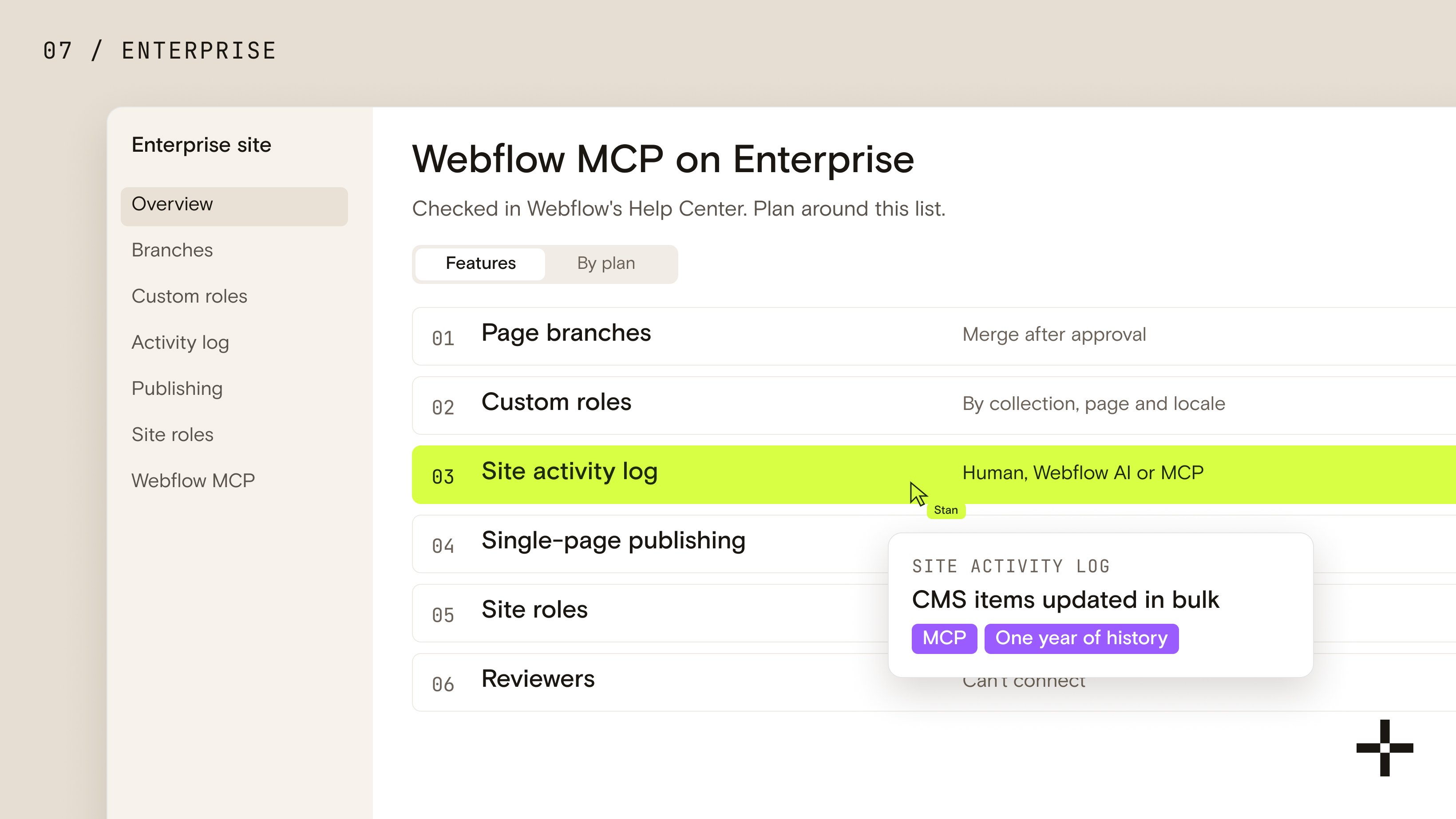
Webflow MCP on Enterprise: branches, roles and activity logs
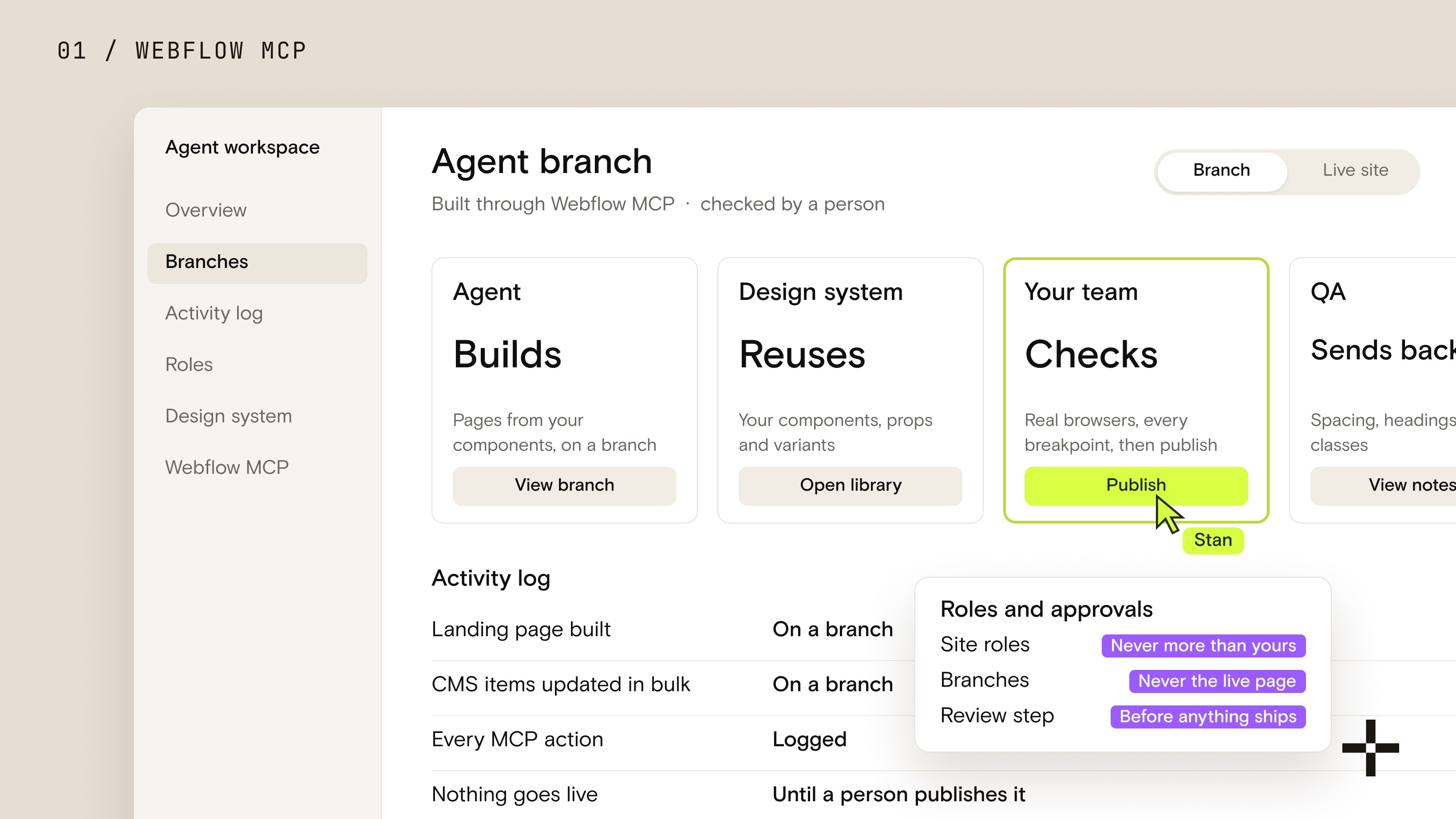
On a Webflow Enterprise plan, Webflow MCP gets the governance layer that makes agents safe on a large team: page branches, custom roles scoped down to a collection, page or locale, a site activity log that labels every MCP change, and single-page publishing. On other plans, the agent still works, but under your standard site roles and without those controls.
Webflow's own pages don't agree on this, so I checked each feature in the Help Center. The MCP 2.0 announcement lists branches, granular roles and activity logs as general governance features; the Help Center articles mark every one of them Enterprise. The Help Center is the version to plan around.
| Feature | What it means for the agent | Plan |
|---|---|---|
| Site roles | The agent can do what the connecting person's role allows; Reviewers can't connect | All plans |
| Page branches | Works on an isolated copy of a page, previews it on its own staging subdomain, merges after approval | Enterprise |
| Custom roles by collection, page and locale | Inherits a narrow scope, so it can only touch the content that person owns | Enterprise |
| Site activity log | Every change labeled as human, Webflow AI or MCP, with a year of history | Enterprise |
| Single-page publishing | Ships one page without publishing everything else on the site | Enterprise |
Branches are where Enterprise changes the day-to-day most. An agent can run the whole branch lifecycle over MCP: create a branch, pull in changes from the main page, publish a preview to the branch's own staging subdomain, and merge once someone with merge rights approves (Webflow, page branching). One catch worth knowing before you rely on it: content edits made to the original page while a branch is open are lost on merge, so freeze that page until the branch is in.
The activity log is the other piece I'd want on any team bigger than a few people. Each entry shows whether a person, Webflow AI or an MCP-connected tool made the change, it keeps a year of history, and the agent can query it too (Webflow, site activity log). When something looks off on Monday morning, "who changed this" stops being a guessing game.
We're running this setup now on our newest Enterprise build, with branches and role-scoped access, and it's the version of Webflow MCP I'd want for any large marketing team. If that's where you are, our Webflow Enterprise work starts with exactly this setup.
Still choosing the platform itself? Our guide to how enterprise teams should choose a CMS covers roles, governance and the questions to ask before you sign.
Does Webflow MCP replace a Webflow agency?
No. It moves the agency's job. The small edits a client used to send us, a meta title here, a new landing page there, their own team can now do with an agent. What's left for us is the work the agent depends on: the design system it builds from, the site architecture and CMS structure, new components and layouts, the roles and review steps that keep it safe, and the QA that catches what it gets wrong.
I think that's a better job for both sides. The client stops waiting on us for small changes, and we spend our time on the parts that decide whether the site is any good.
The three workflows we set up first
- Bulk SEO fixes. Meta titles, descriptions and alt text across the site. Low risk, easy to check, and the result is easy to measure.
- New pages from existing components. Campaign and landing pages on layouts the site already has, reviewed on staging before anyone publishes.
- CMS updates and translations. Bulk edits, new items and localized versions of existing content, with a person reviewing the language before it ships.
All three stay inside what the site already has. New components, new layouts and anything structural stay with a person until the team has a reason to trust the agent with more.
Is your site ready for Webflow MCP?
Your site is ready for Webflow MCP when an agent can find the right parts and can't break the wrong ones. Connecting takes two minutes. Getting value out of it depends on what the agent finds once it's in, and on who's checking its work.
Webflow MCP won't fix a poorly built site on its own. It can help clean one up, but only when the person running it knows how the site should be built and can read and judge what the agent hands back. Without that, it repeats the same mistakes faster, and usually adds a few. AI coding tools work the same way today.
Before you point an agent at a live site, I'd check five things:
- Components, not one-off sections. If every page is hand-built, the agent has nothing to reuse and will invent styles.
- One class system. Duplicated and near-identical classes are where agents pick the wrong one.
- CMS fields with one job each, with descriptive names, so the agent fills the right field.
- No Classic interactions left on pages you'll animate, or move them to the new interactions first.
- A person who owns quality, with the time to send the work back.
The fifth one is the one people skip. Webflow MCP is good, and it keeps getting better, but it's a tool in someone's hands, not a replacement for those hands. This is how we build every agentic Webflow website: the agent does more of the building, and a person stays responsible for every page that ships. If you're weighing what Webflow is building toward next, my take on Webflow Source covers why the same groundwork pays off twice.
If you'd rather have it set up than set it up, let's talk.
Let's set up Webflow MCP the right way
One call. We look at your site and tell you what it needs before an agent touches it, with a real scope.
Book a call