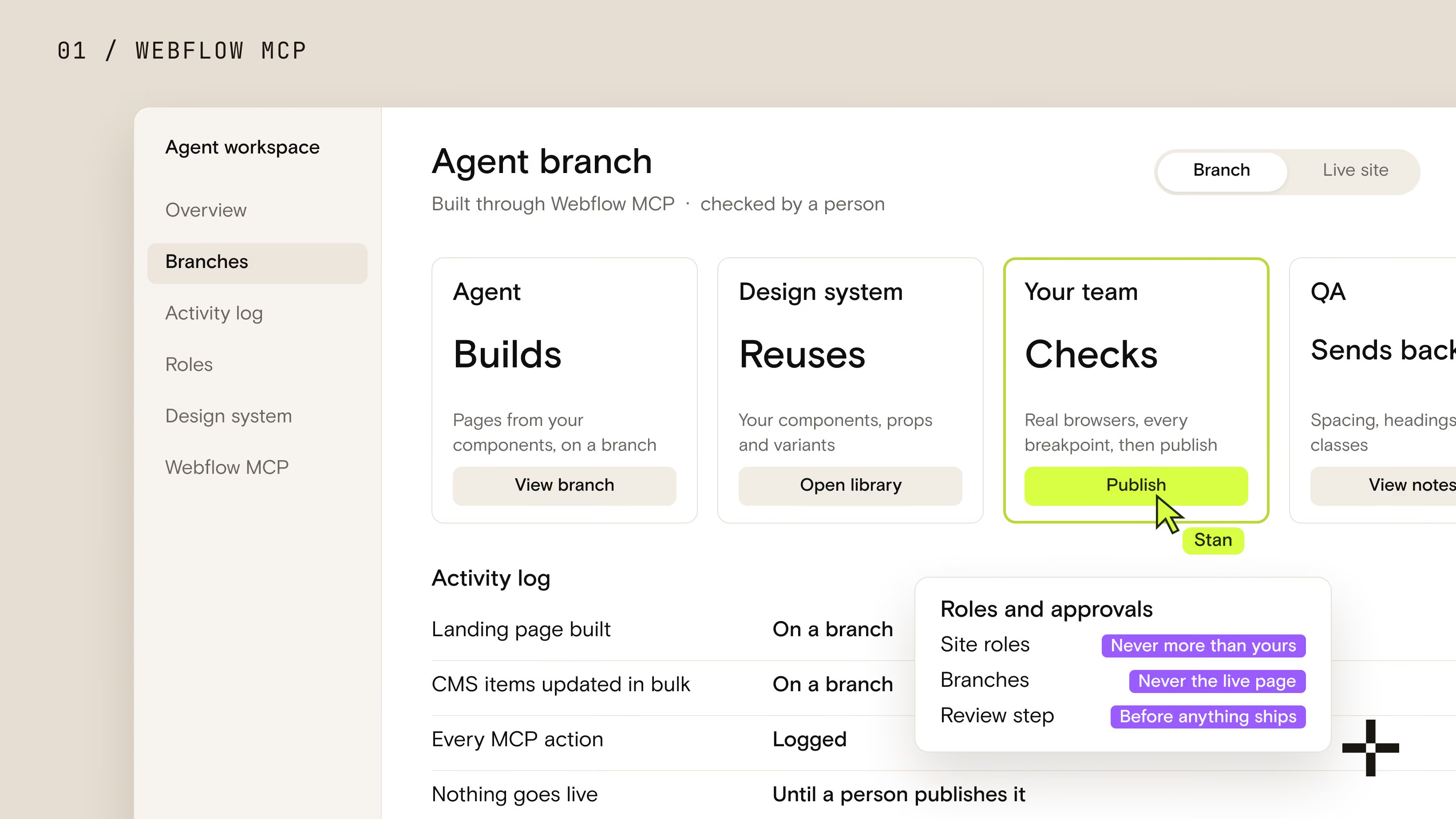

We run our own website with an AI agent every working day. The agent reads the Webflow project, proposes a change, builds it on a staging copy and checks it. A person approves the change before it starts and publishes it when it's done.
By mid-November 2026 that loop had shipped 158 logged rounds of changes to stan.vision: copy, CMS fields, schema, templates, motion, a full SEO and AEO pass. Nothing went live without a human click on Publish.
This article shows how that works in practice. I'll walk through the setup, one real change from start to finish, the rules that keep it safe, and the places where the agent still hands the job back to us. If you want the definition first, start with What is an agentic website.

The setup: four parts
The whole system is four pieces, and only one of them is new.
- The Webflow project. Our live site, with its components, variables, classes and CMS collections. The agent works on this project, not on an export or a copy.
- Webflow MCP. Webflow's official connector lets an AI agent read and edit pages, components, styles, CMS items, schema and the sitemap. It's the new piece. We wrote about it in Webflow MCP: what it is and how we build with it.
- A staging site. Every Webflow site has a free webflow.io subdomain. The agent publishes there and nowhere else, so every change can be checked on a real URL before customers see it.
- A person who publishes. I review staging and push the custom domain live myself. The agent never has that step.
Around those four sits a written rulebook: how we name classes, where custom code may live, what needs a snapshot first. The agent reads it at the start of every session, the same way a new developer would read our handbook.
One change, start to finish
On 16 November 2026 we changed the H1 on all 17 case studies. Before, each page's H1 was just the client's name, "Rillet", which tells a search engine almost nothing. Here is how the agent handled it.
- It read before proposing. The agent pulled the case study template, found the H1 bound to the CMS Name field, and noticed the intro paragraph below it was marked up as an H2.
- It posted a changeset. One message: add a plain-text H1 field to the Works collection, write 17 H1s from each page's meta title and first result, rebind the template heading, and change the intro to a paragraph. It listed all 17 lines, for example "Rillet: a Webflow Enterprise site for a $1B ERP".
- I approved, with one condition. The "Up next" scroll transition at the bottom of every case study might depend on the heading, so I asked the agent to make sure it wouldn't break.
- It checked the risk first. The agent read the transition script on staging and confirmed it takes the next project's name from the CMS, not from the H1. Only then did it make the change.
- It built and verified on staging. New field, 17 values, template rebound, published to webflow.io. It then fetched all 17 pages and confirmed each had exactly one H1 with the new text, and scrolled one case study to the end to watch the transition load the next page.
- It reported what it couldn't do. The intro paragraph stayed an H2: the component's tag setting only accepts h1 to h6. The agent said so and offered a native alternative instead of patching it with custom code.
My part was two messages: the approval with its one condition, and a read of the 17 headlines.
The rules that make it safe
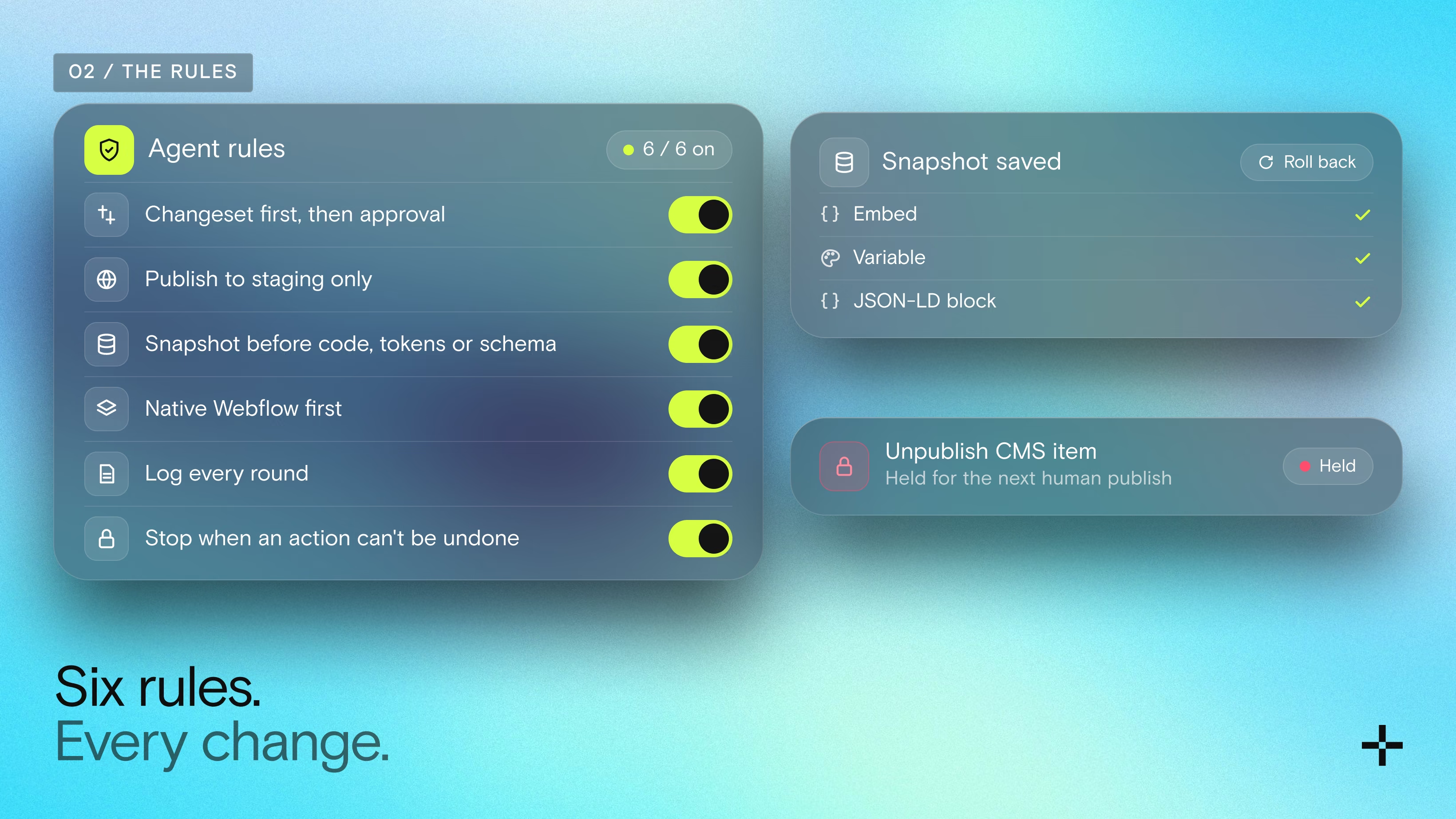
An agent with edit access to a live site is only as safe as the rules around it. These are ours, and the agent follows them on every change.
| Rule | Why it exists |
|---|---|
| Changeset first, then approval, then the change | No surprise edits. I see what will change and where before anything moves. |
| Publish to staging only | The agent can't take anything live. Only a person publishes the custom domain. |
| Snapshot before touching code, tokens or schema | Every embed, variable and JSON-LD block is saved to our project log first, so any change can be rolled back exactly. |
| Native Webflow first | Classes, variables and components before custom CSS. Code goes in an embed inside the component it belongs to. |
| Log every round | Each change ends with a note: what changed, where, how it was checked, what's still open. |
| Stop when an action can't be undone | Unpublishing a CMS item removes it from the live site at once, so the agent waits for the next human publish instead. |
The last rule came from experience. Setting a published item to draft doesn't take its page down, and the only API call that does acts on the live site immediately. The agent spotted that, held the step, and added it to my publish checklist.

What agents do well, and what still needs people
The agent is fastest at work that is wide and repetitive. It is weakest at taste and at the few corners of Webflow the API can't reach.
Where the agent wins
- Site-wide sweeps. In one pass it fetched all 145 pages in our sitemap and checked every mention of our partner tier and award count against our profiles. A person would sample ten pages and hope.
- Bulk CMS work. 17 new H1s, 87 journal articles retagged by topic, FAQ answers kept in sync with their schema.
- Structured data. JSON-LD on every page and template, written through Webflow's native schema field rather than custom embeds.
- Checking its own work. After each change it opens the staging pages, compares them with the snapshot and reports what it saw.
Where a person still decides
- Design and voice. The agent proposes. On our Work page I rejected several grid layouts before one felt right. That judgment stays with us.
- Designer-only steps. Some things only work inside the Webflow Designer, such as binding a text to a CMS item's built-in Created On date. The agent does these through a browser, slowly, or hands them to us.
- Rich text with images. Reading a rich text field through the API and writing it back swaps the optimised images for the originals. The agent edits those in the CMS editor instead.
- Publishing. Always a person.
How to start on your own site
Start small and keep publishing in human hands.
- Connect Webflow MCP to the AI tool your team already uses, with access to one site.
- Write the rules down first. Naming, where code lives, what needs approval. Use our starter rules below as a base.
- Give the agent a read-only job. An SEO or content audit of your own site shows you how it reasons before it edits anything.
- Move to staging edits. Let it change CMS items or meta data and publish to webflow.io only. Review there, publish yourself.
- Keep a log. One note per change. It's your rollback plan and the agent's memory between sessions.
Starter rules for an agent on your Webflow site
These twelve come from the rulebook our agents follow on every client build. Paste them into your agent's instructions and adjust the names to your site.
Safety
- Publish to the webflow.io staging subdomain only. A person publishes the custom domain.
- Before any change, post a short changeset: what changes, on which pages. Wait for a yes.
- Save the current version of any embed, custom code, variable or schema block before editing it.
- Write a log note after every change: what changed, how it was checked, what's still open.
Building
- Reuse existing components, classes and variables first. Anything new needs a one-line reason.
- Anything used more than once becomes a component. Same structure with a different look is one component with variants.
- Style with Webflow classes and variables. Custom CSS only for what the Style panel can't set, and say which property.
- Code for one section lives in an embed inside that section's component, so it moves with it.
- No hardcoded colours in code. Use variables, so light and dark modes both work.
- Pin every external library to an exact version, and leave no console.log in production.
Content and SEO
- One H1 per page. Every page gets a meta title and description, every image alt text.
- Structured data goes in Webflow's page schema field, not in custom code embeds.
If you'd rather have a team set this up and run it with you, that's our agentic Webflow websites service. On Webflow Enterprise, the same loop adds roles and staging branches; see Webflow Enterprise.