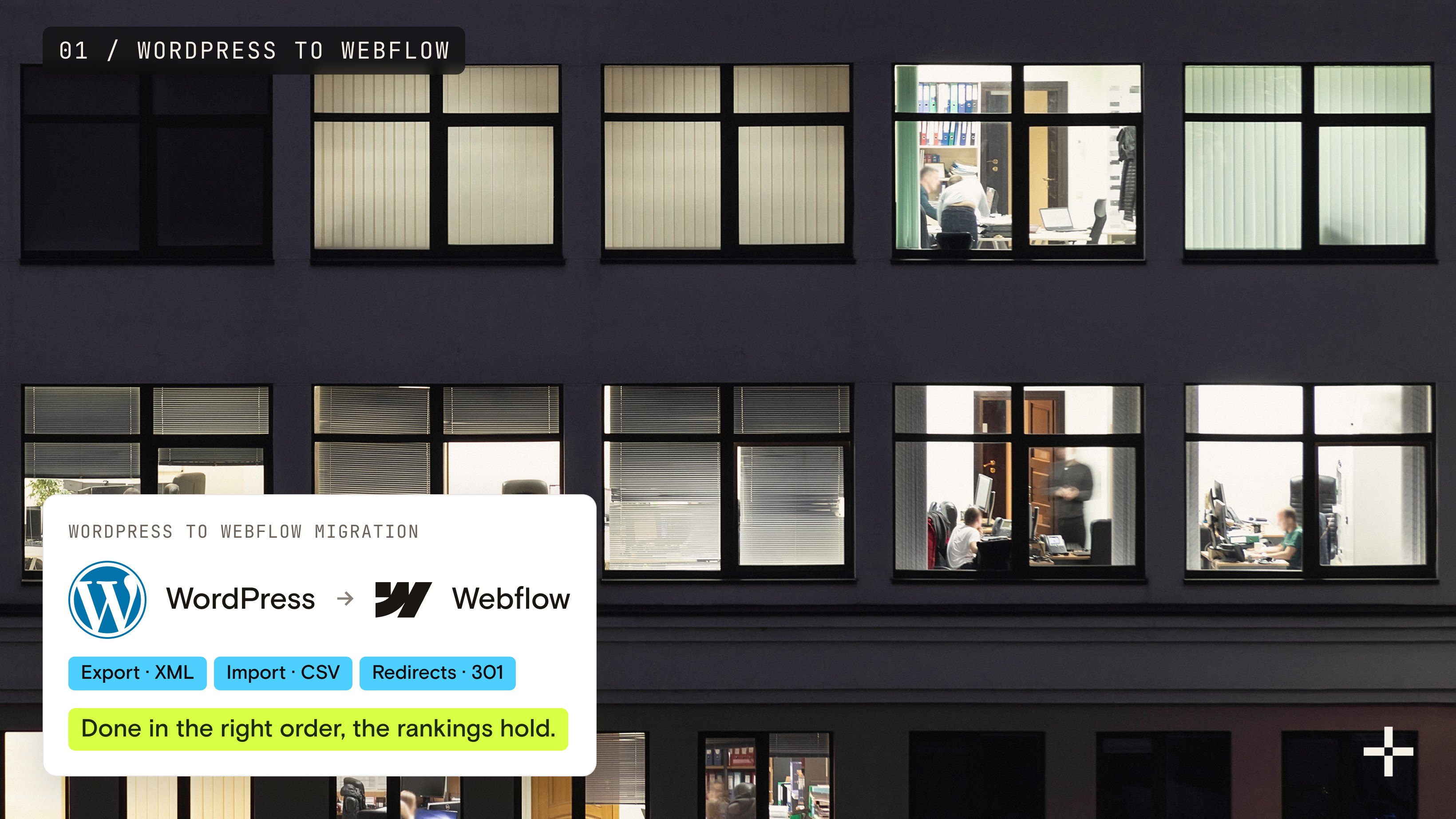
A WordPress to Webflow migration moves your pages, posts and media into Webflow and points every old URL at its new home with a 301 redirect, so search engines carry your rankings across. There's no one-click button for it: WordPress exports XML, Webflow imports CSV, and the pages themselves get rebuilt in Webflow. Done in the right order, the rankings hold.
A migration is the only project where "nothing changed" is the best possible outcome for your rankings. Everything in this guide exists to get you that boring result.
We've been through it on our own site first. We moved stan.vision off WordPress in 2022, and it took just under two months. We've also moved Gridwise, Supy, Inveztor, Bambassadors and Shopeaks off WordPress for clients. Gridwise held every ranking through its move and lifted conversions 24%. Bambassadors grew its website traffic 2.8x after launch. Here's the order we work in, and the WordPress habits that trip people up.
Does Webflow support migration from WordPress?
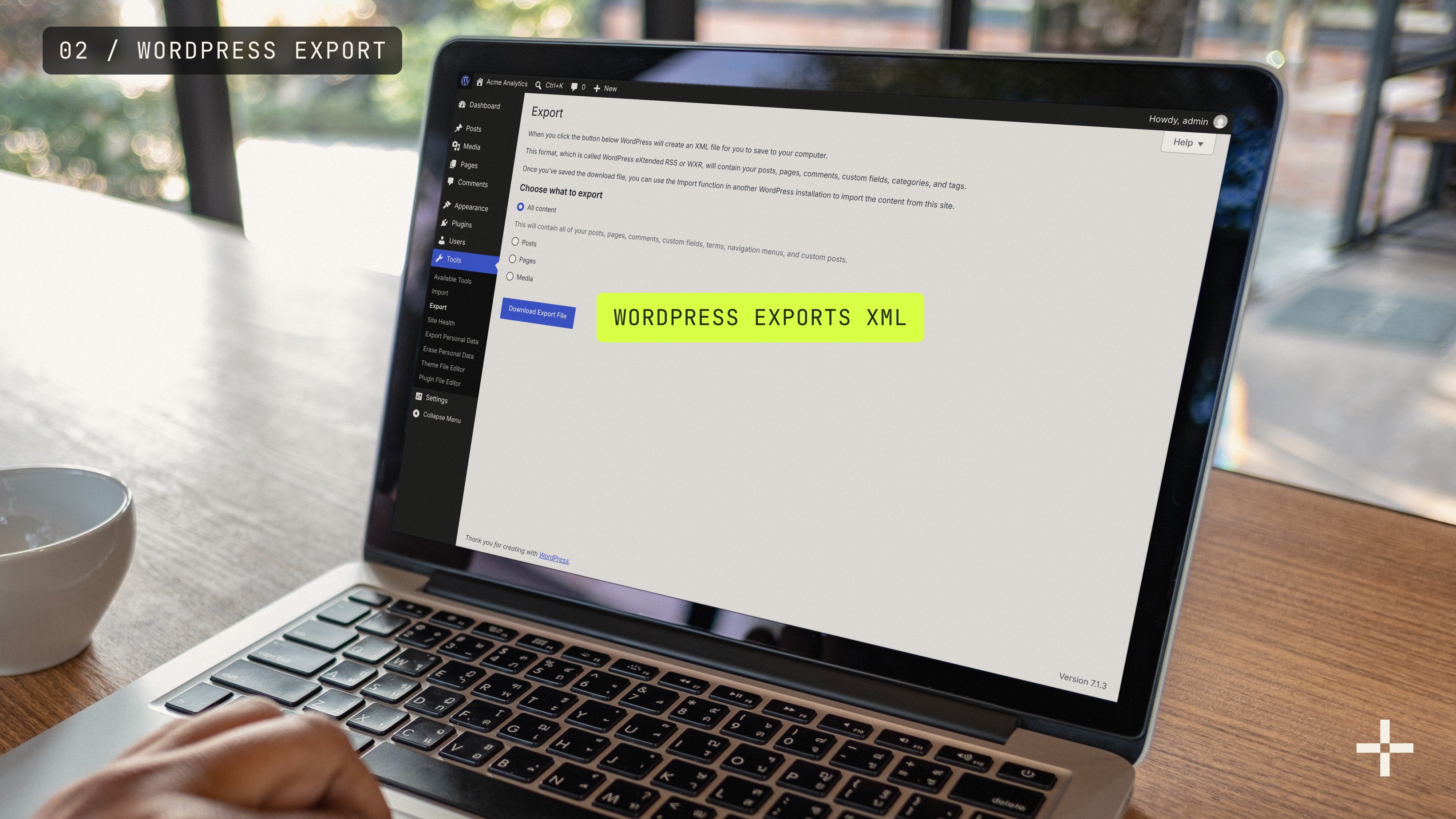
Yes. Webflow's CMS imports CSV files, so your WordPress content goes into Webflow Collections (Webflow's name for structured content types, like posts or authors) with each column mapped to a field on import. Webflow's own route is to export from WordPress, which gives you XML by default, convert that XML to CSV, create a Collection, import the CSV and map the fields (Webflow Help Center).
What doesn't import is the design. Your theme, page builder layouts and widgets have nothing to export into, so pages are rebuilt in the Webflow Designer, ideally as reusable components your team can build new pages from.
There are also third-party apps. WP to Webflow, built by Eclipse SRL, is free and says it imports posts, images, tags and categories. Webflow reviewed it but doesn't endorse it, so whichever route you take, check the result field by field before you import the next batch.
Here's how the main pieces of a WordPress site map across:
| On WordPress | In Webflow | How it gets there |
|---|---|---|
| Posts and custom post types | Collection items | CSV import, one Collection per content type |
| Categories, tags, authors | Their own Collections, linked with reference fields | CSV import first, so the posts can reference them |
| Pages | Static pages | Rebuilt in the Designer |
| Theme and page builder layouts | Components | Rebuilt; nothing to import |
| Featured images | Image fields | Imported from a direct image URL in the CSV |
| SEO plugin titles and descriptions | Collection fields bound to the template's SEO settings | Exported as post meta, mapped on import |
| Form plugins | Webflow forms or your CRM's forms | Rebuilt and retested |
| Redirect plugin rules | 301 redirects in Site settings | Added by hand, as wildcard rules, or by CSV |
How to migrate from WordPress to Webflow in seven steps
The order matters more than any single step. The usual mistake is doing the redirects last, after the new site exists and nobody remembers everything the old one had.
1. How do you audit a website before migrating to Webflow?
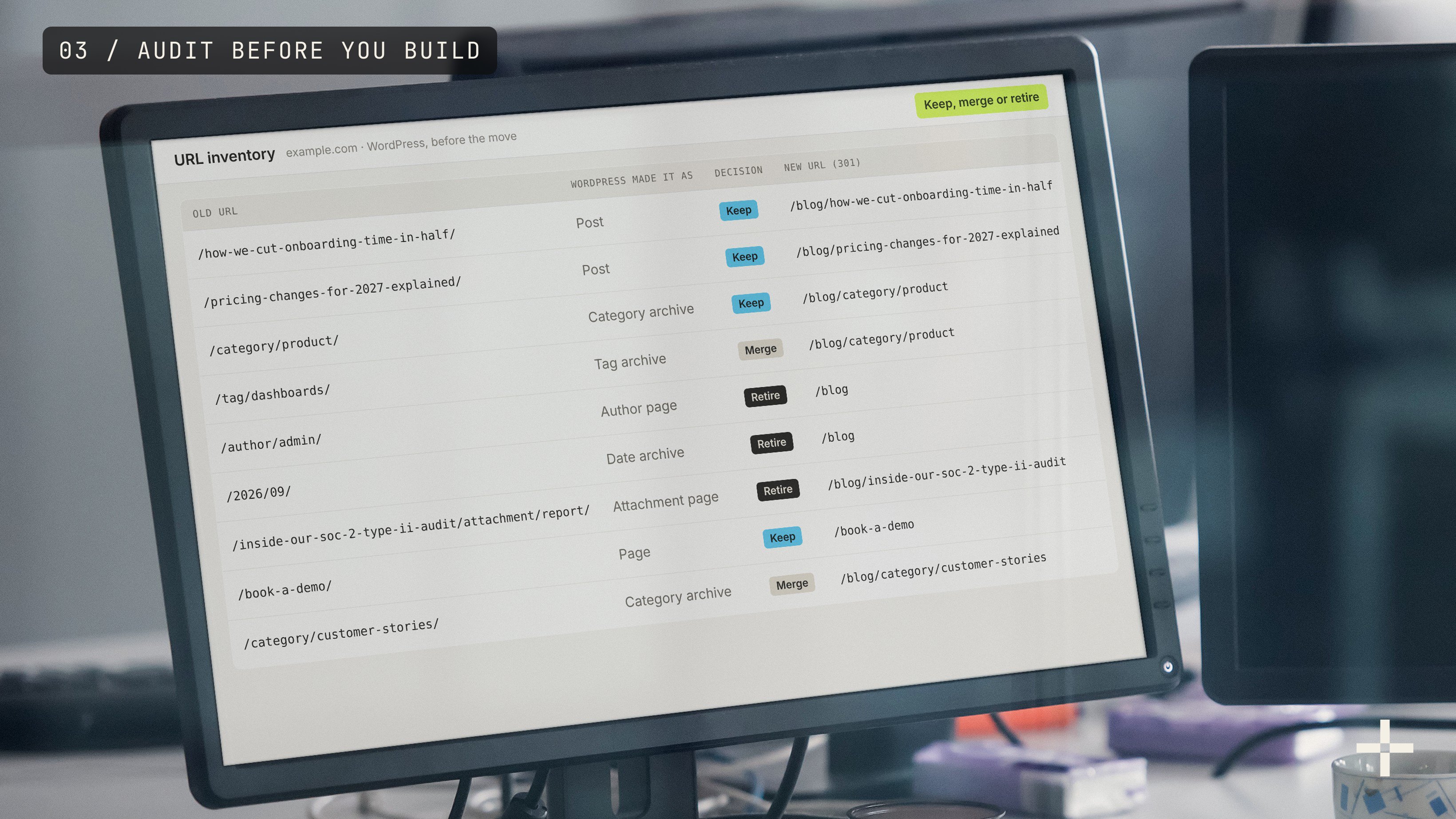
List every URL that has traffic, rankings or backlinks, record where each one stands today, and decide for each: keep, merge or retire. That list becomes your redirect map, and the snapshot becomes the baseline you judge the migration against.
- Crawl the site for every live URL, including the ones WordPress creates on its own: tag and category archives, author pages, date archives and attachment pages for images. Some of them rank, and nobody remembers making them.
- Pull your pages from Google Search Console with clicks, impressions and average position, so you know which URLs carry the traffic.
- List the pages other sites link to, from Ahrefs or any backlink tool. A page with links and no traffic still needs a redirect.
- Inventory the content model: post types, custom fields, and every plugin that puts content on the page, from shortcodes to sliders. Each one gets rebuilt or dropped, and it's better to decide which before the build than during it.
2. Build the redirect map before the rebuild
Match every old URL that you're keeping or merging to its new URL, one row each, in a spreadsheet. Do it now, while the old site is the only site, because the new URL structure should be designed around what you have to redirect, not discovered afterwards.
Every redirect should be single-hop: the old URL points straight to its final page, with no chain through a third URL. Retired pages point to the closest relevant page, not all to the homepage.
3. Model the content as Webflow Collections
Create one Collection per content type: posts, categories, tags, authors, and any custom post types you're keeping. Give each one the fields your posts actually use, plus an SEO title and meta description field, so your existing metadata has somewhere to land.
Check the plan before you build. As of October 2026, Webflow's Basic Site plan has no CMS, and Premium includes 20,000 CMS items and 40 Collections (see our Webflow pricing breakdown). If your WordPress site needs more Collections than that, you'll want to know now, not halfway through the import.
4. Export, convert and import the content
Export from WordPress under Tools, then Export, convert the XML to CSV, and clean it before Webflow sees it. These are the rules from Webflow's CSV import guide that matter most in a migration (Webflow Help Center):
- Each CSV file can be up to 4 MB, so a large blog goes in as several files.
- Rich text must be HTML. Unsupported elements, classes and attributes get cleaned up on import.
- Images import from a direct URL ending in an image file extension, which means Webflow fetches them from your old site. Keep WordPress online until the import is checked.
- Images imported by CSV don't get responsive variants, so check page weight on image-heavy posts afterwards.
- Reference fields match by name or slug. Import categories, tags and authors first, then the posts that point to them.
- File fields can't be mapped and have to be uploaded by hand after the import.
Import a small batch first, open the imported items on staging, and compare them with the live WordPress posts before you import the rest.
Moving off WordPress?
One call. Show us the site, and we'll tell you what moves, what gets rebuilt, and how long it takes.
Book a call5. Rebuild the pages and templates
Rebuild the static pages in the Designer, and build one Collection template per content type. Bind each template's SEO title, meta description and Open Graph settings to the fields you imported, so every post keeps the metadata it ranked with.
This is also the step where a like-for-like migration and a redesign split. Like-for-like keeps the content and structure and rebuilds them properly. A redesign changes the pages too, which is fine, as long as the URLs you mapped in step 2 still have somewhere to point.
6. Add the 301 redirects and test them on staging
Add redirects in Site settings, under Publishing, then 301 redirects. Webflow supports wildcards: (.*) in the old path captures part of the URL, and %1, %2 place it in the new one. A rule like /2024/(.*)/(.*) to /blog/%2 can cover a whole year of month-and-name WordPress permalinks (Webflow, setting up redirects).
- Webflow has no hard limit on redirects but recommends 1,000 at most, so use wildcard rules wherever a pattern covers many URLs.
- Redirects can be imported by CSV, and an import overwrites the existing rules instead of adding to them (Webflow). Export what you have before you import.
- A redirect only fires if no live page uses the old path, so delete, draft or rename any page still using it first.
- Test every row of the map, with and without the trailing slash WordPress adds to most URLs.
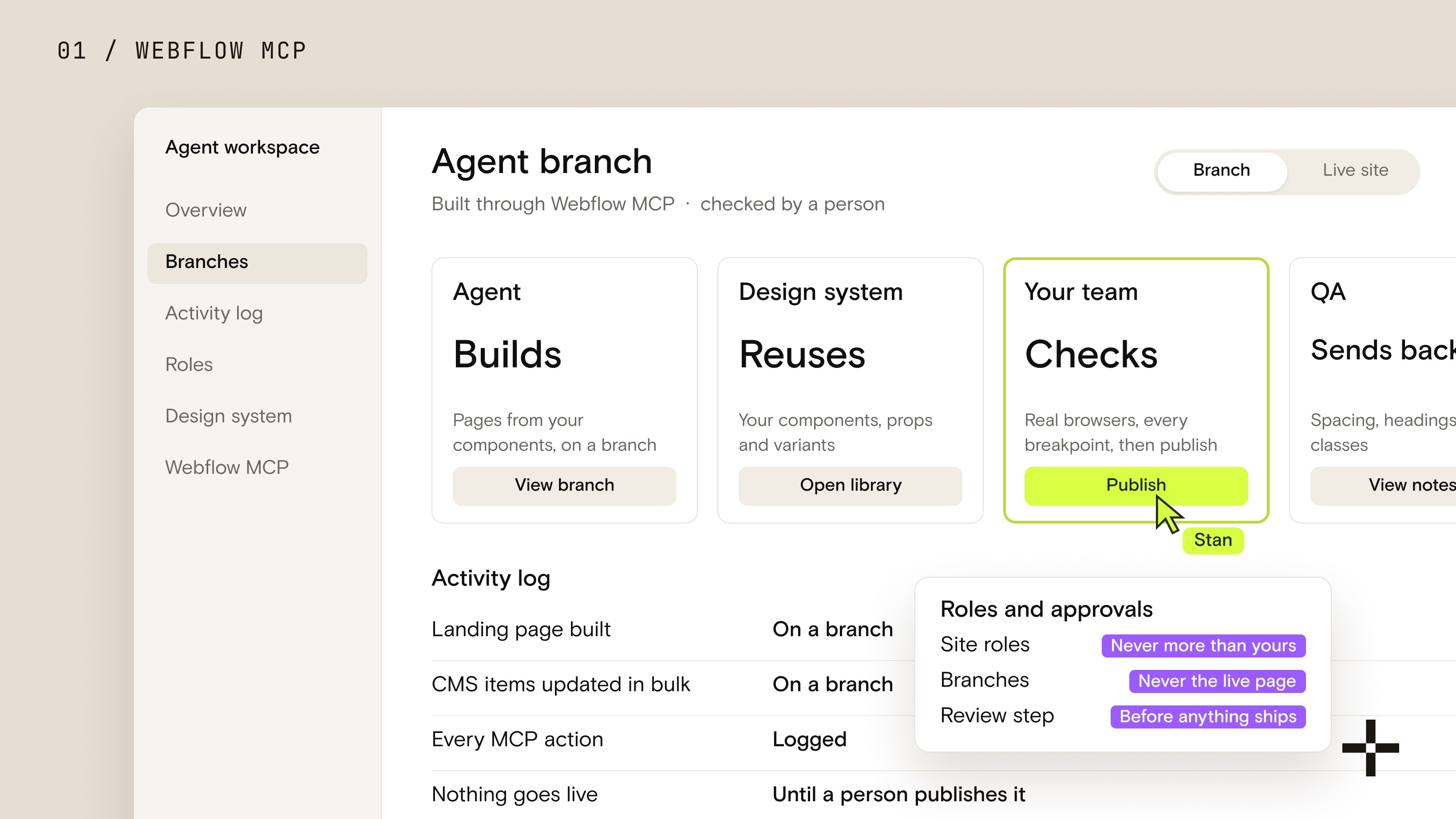
Don't switch the domain before the redirects are tested
When traffic drops after a migration, it usually starts on launch day, with old URLs that now return 404.
Test the full redirect map on staging, then point the domain at Webflow. Keep the WordPress export and the old site's files until rankings have settled.
7. Launch and watch the rankings
Point the domain at Webflow, publish, and submit the new sitemap in Google Search Console. Then inspect your highest-traffic URLs to confirm Google sees the redirects, and compare positions against the step 1 baseline every week. Watch rankings, crawl errors and form submissions for at least the first month, and fix any 404 the moment Search Console reports it.
The WordPress habits that break a Webflow migration
Most migration problems come from things WordPress did quietly for years. These are the ones to plan for.
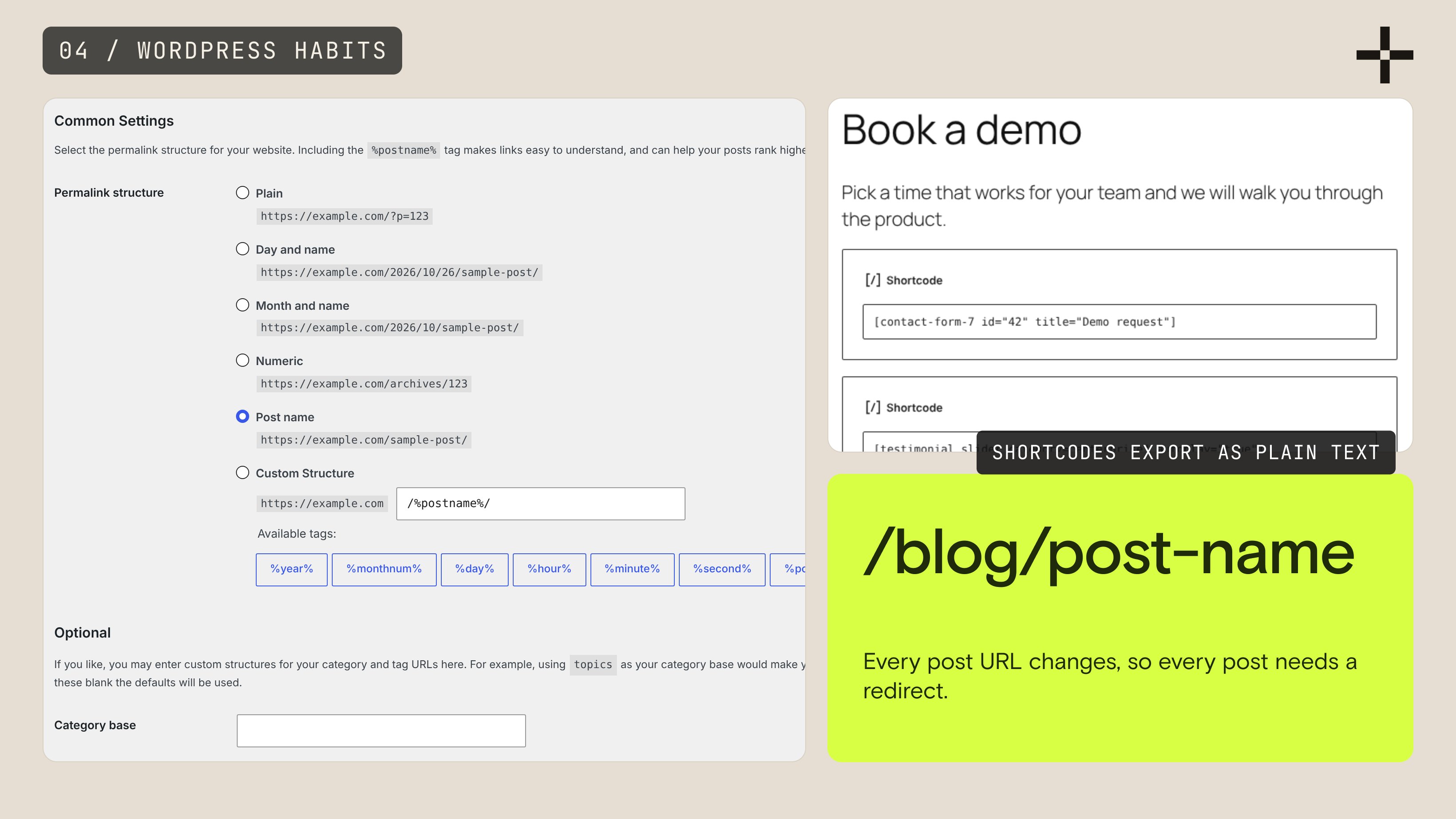
- Posts that live at the root of the domain. If your permalinks are set to the post name, posts live at
/post-name. Webflow puts Collection items under their Collection's path, like/blog/post-name, so every post URL changes and every post needs a redirect. - Shortcodes and page builder markup. Shortcodes export as plain text in square brackets, and page builder layouts export as builder-specific markup and data Webflow can't use. Strip or replace them before import, or they show up in your posts.
- SEO title templates. If your SEO plugin built titles from templates instead of hand-written text, the export holds the template variables, not the finished titles. Write them out before you map the fields.
- Forms and tracking. Form plugins don't move. Rebuild each form, reconnect it to your CRM, and check the tracking fires before launch, not after the first lost lead.
- Switching WordPress off too early. Image imports pull files from the old site, and you'll want it for checking redirects. Leave it running, out of public view, until the migration has settled.
How long does a WordPress to Webflow migration take?
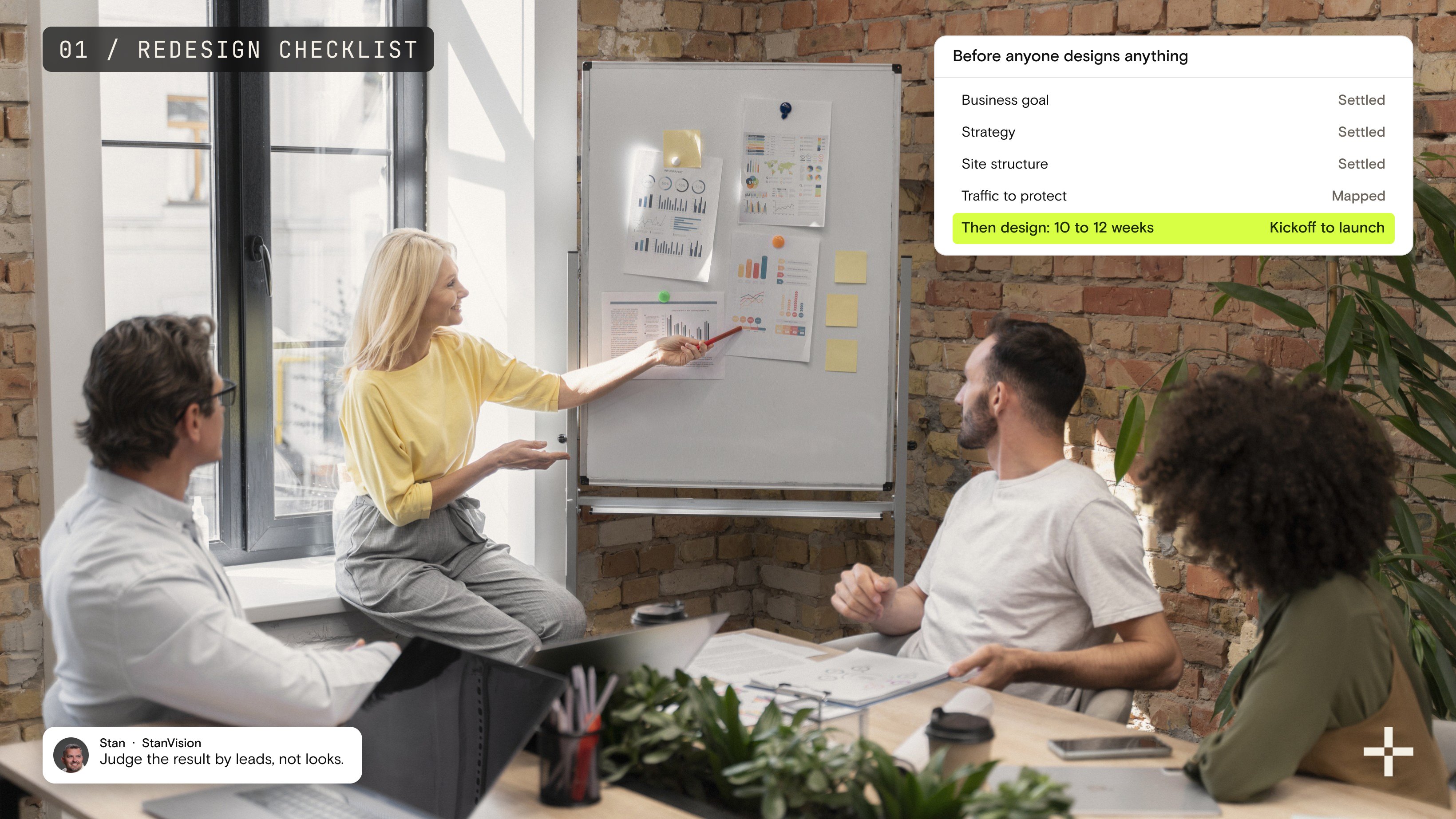
A like-for-like WordPress to Webflow migration takes us 3 to 4 weeks. If you're redesigning at the same time, plan on 10 to 12 weeks for design and build, with the audit and redirect map starting in week one either way. Our own site took just under two months, back in 2022, as our first.
A big blog adds less time than you'd think, since a CSV import is quick once the Collections are right. What takes time is the audit, the redirect map and the testing, and those are exactly the steps not worth rushing.

Should you migrate it yourself or hire someone?
Do it yourself if the site is small: a handful of pages, a blog you can check by hand, and no search traffic you'd lose sleep over. Webflow's documentation and the steps above are enough.
Bring in help when the site brings in pipeline from search, has years of URLs and backlinks, or runs on custom post types and plugins nobody has documented. That's the work our migration team does, and you can see how we run Webflow migrations end to end, from the baseline to the month after launch.
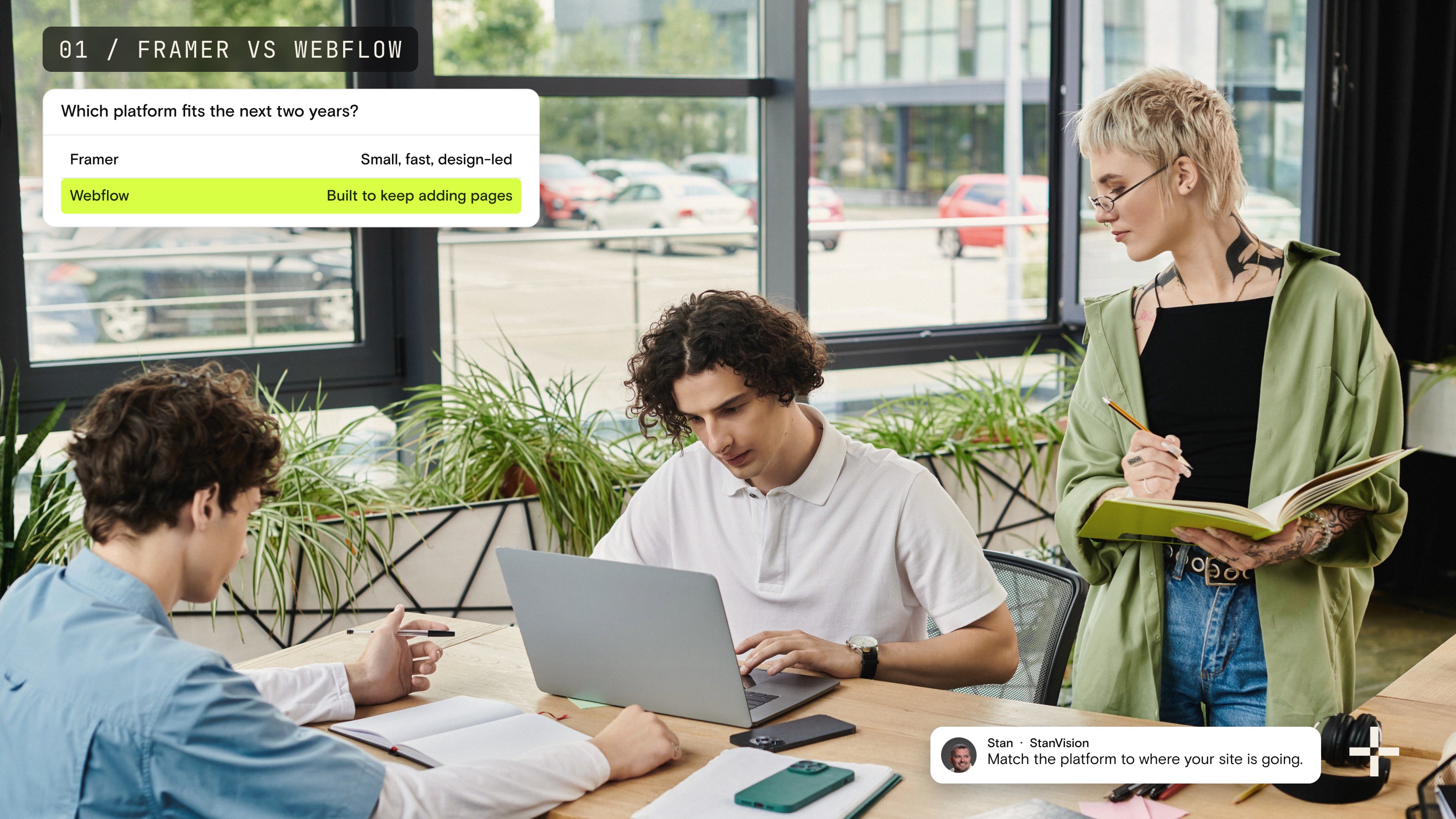
Still deciding whether to leave WordPress at all? Our Webflow vs WordPress comparison covers the trade-offs, and our guide to WordPress alternatives covers the other platforms worth a look. And once you've moved, the site still needs someone improving it, which is what our work after launch covers.
Let's plan your migration
We'll audit your WordPress site, map every URL, and move it to Webflow with the rankings intact.
Start a migration